

BazaarHub Tracker
Records your runs of The Bazaar while you play and puts them on your BazaarHub profile, every hour of every run. Free, with no ads.
Set up on Windows
Install the tracker
Run the installer you downloaded. If Windows says Windows protected your PC, press More info, then Run anyway. It asks because the tracker isn't signed with a paid certificate yet, and updates won't ask again.
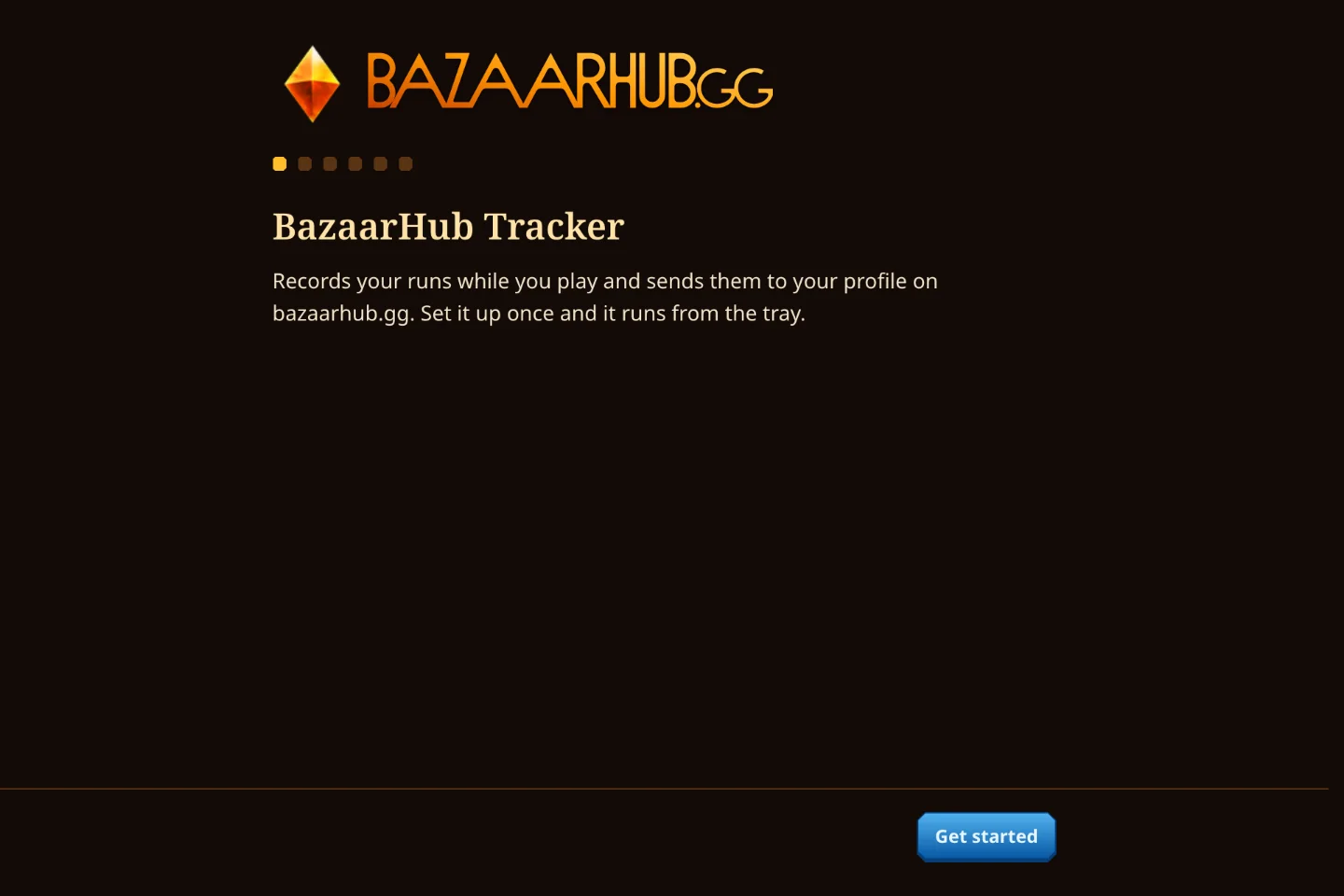
A short welcome sets it up, and from then on it starts with Windows and waits in the tray.
Connect your account
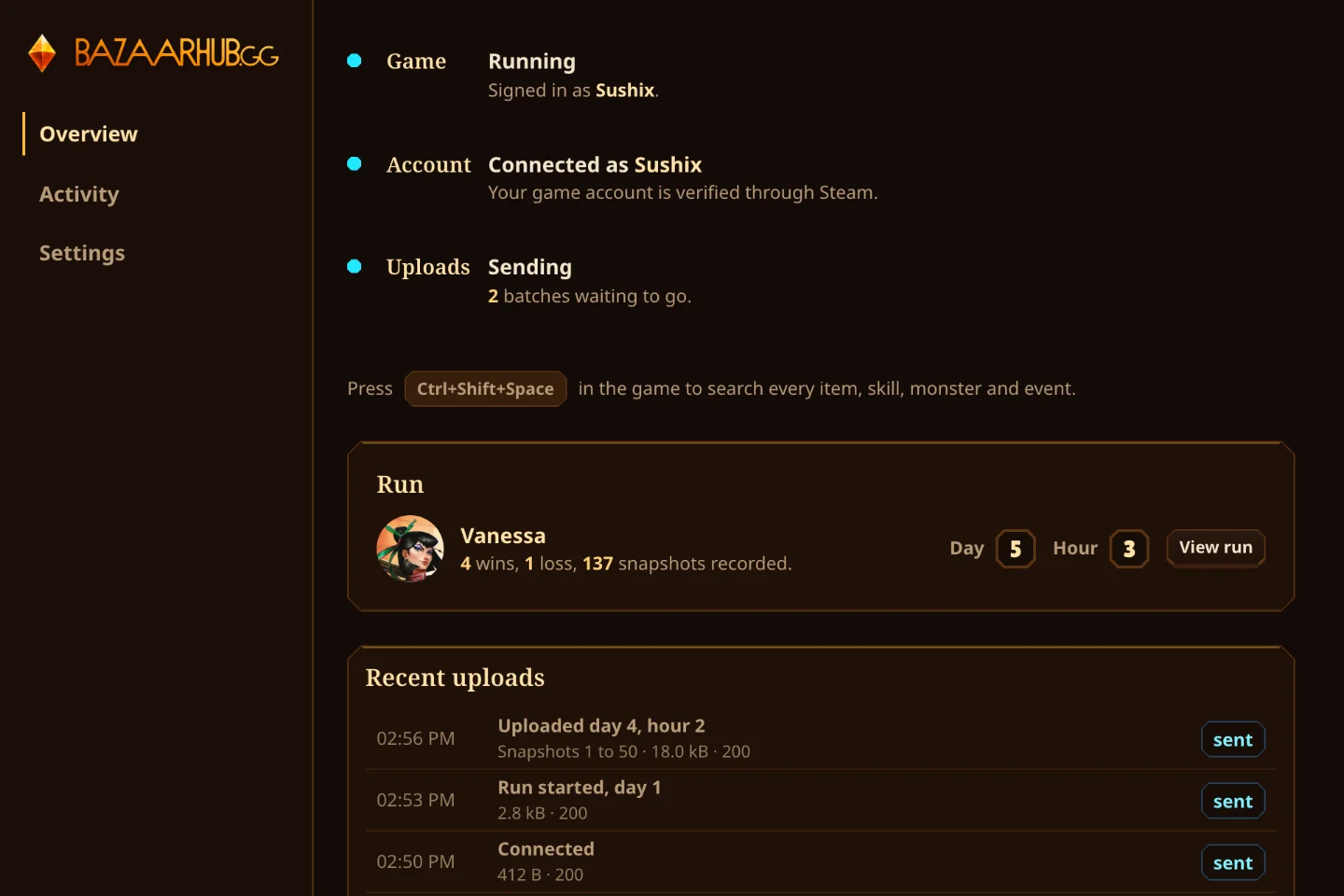
Make a key here and press Open in the tracker. It fills the key in and shows your account name to confirm.
Play a run
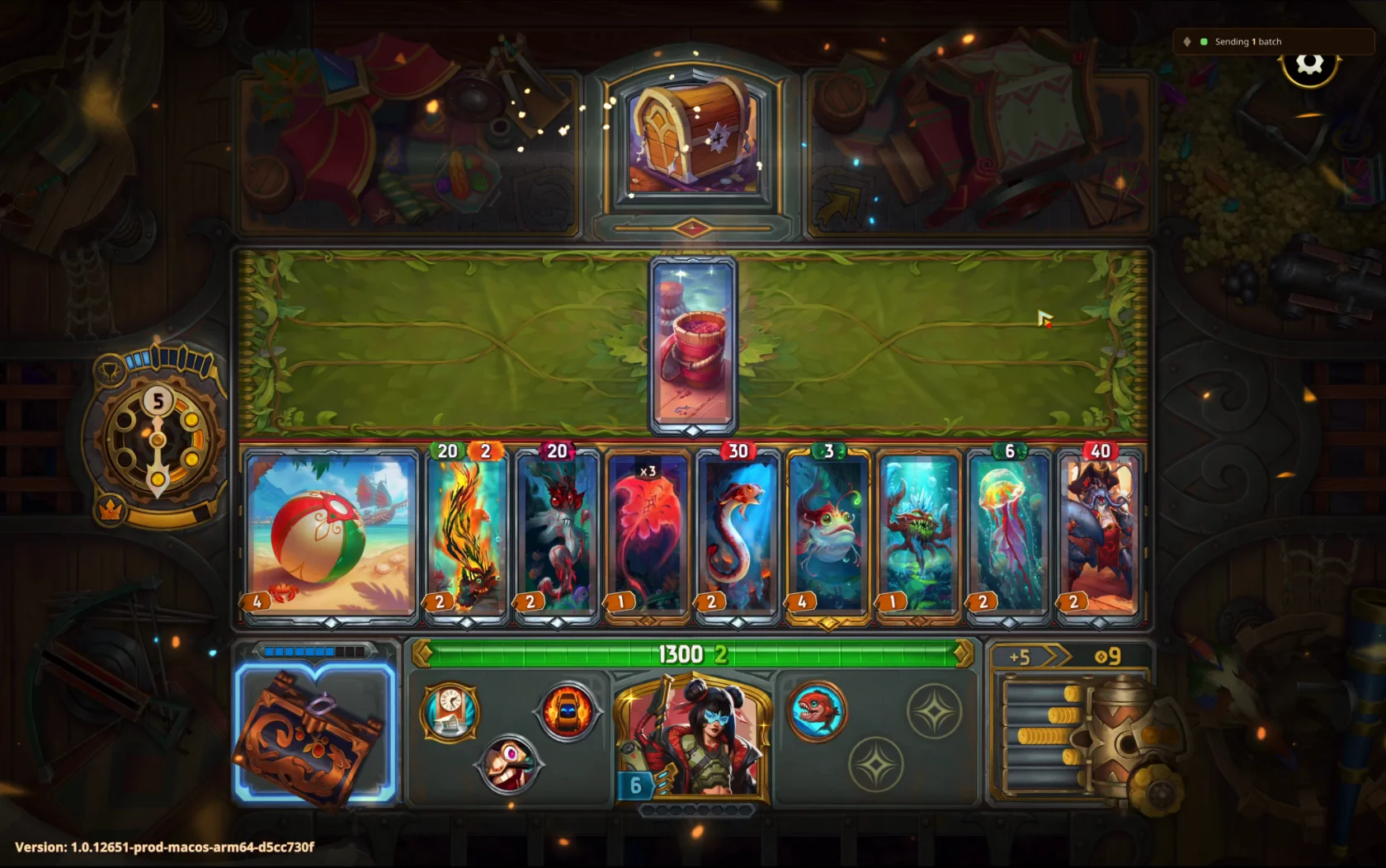
Start a game from Steam or the Tempo Launcher. The tracker's Game row turns teal, and each run reaches your profile hour by hour while you play.
Set up on a Mac
Install the tracker
Open the disk image and drag BazaarHub Tracker into Applications, then open it. macOS checks it three times, because the tracker isn't notarised with Apple yet:
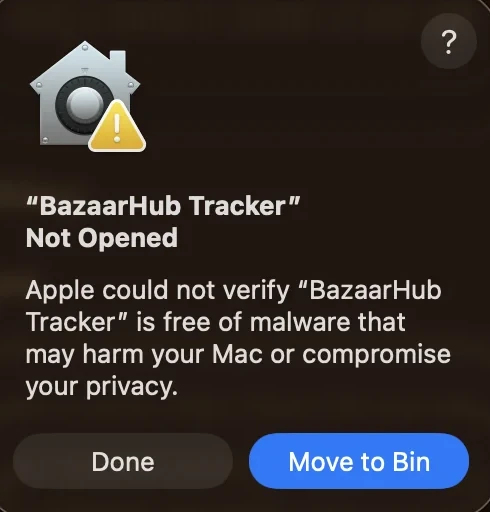
Press Done, not Move to Bin. 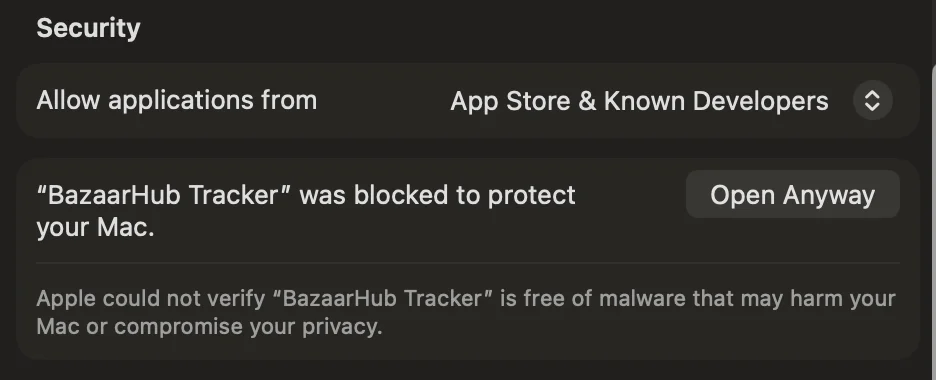
In System Settings, Privacy and Security, scroll to Security and press Open Anyway. 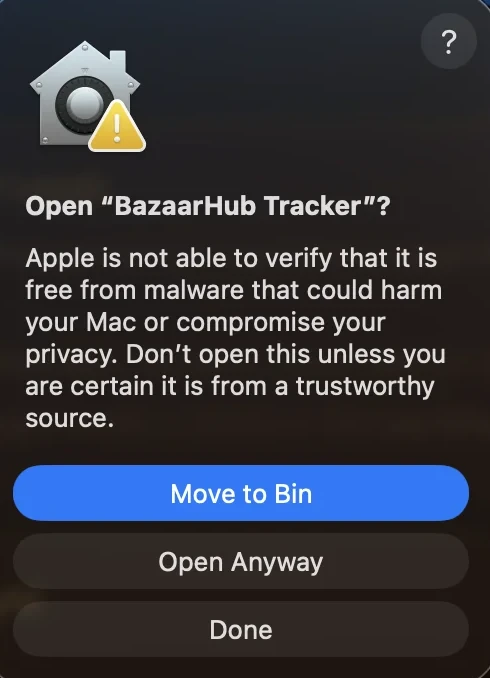
Press Open Anyway again and use your password or Touch ID. Connect your account
Make a key here and press Open in the tracker. It fills the key in and shows your account name to confirm.
Play a run
Start the game from Steam. The first time, macOS asks once to let BazaarHub Tracker read it. Approve it, and the Game row turns teal. Until then it says Waiting for permission.
On a Mac account without admin rights, macOS asks for an administrator's password again every 10 hours.

Set up on Linux and Steam Deck
Install the tracker
Download the AppImage. On a Steam Deck, switch to Desktop Mode first. Open it with Gear Lever, or right-click it, choose Properties, then Permissions, and tick Is executable.
The game has to run through Proton from Steam. The overlay isn't available on Linux.
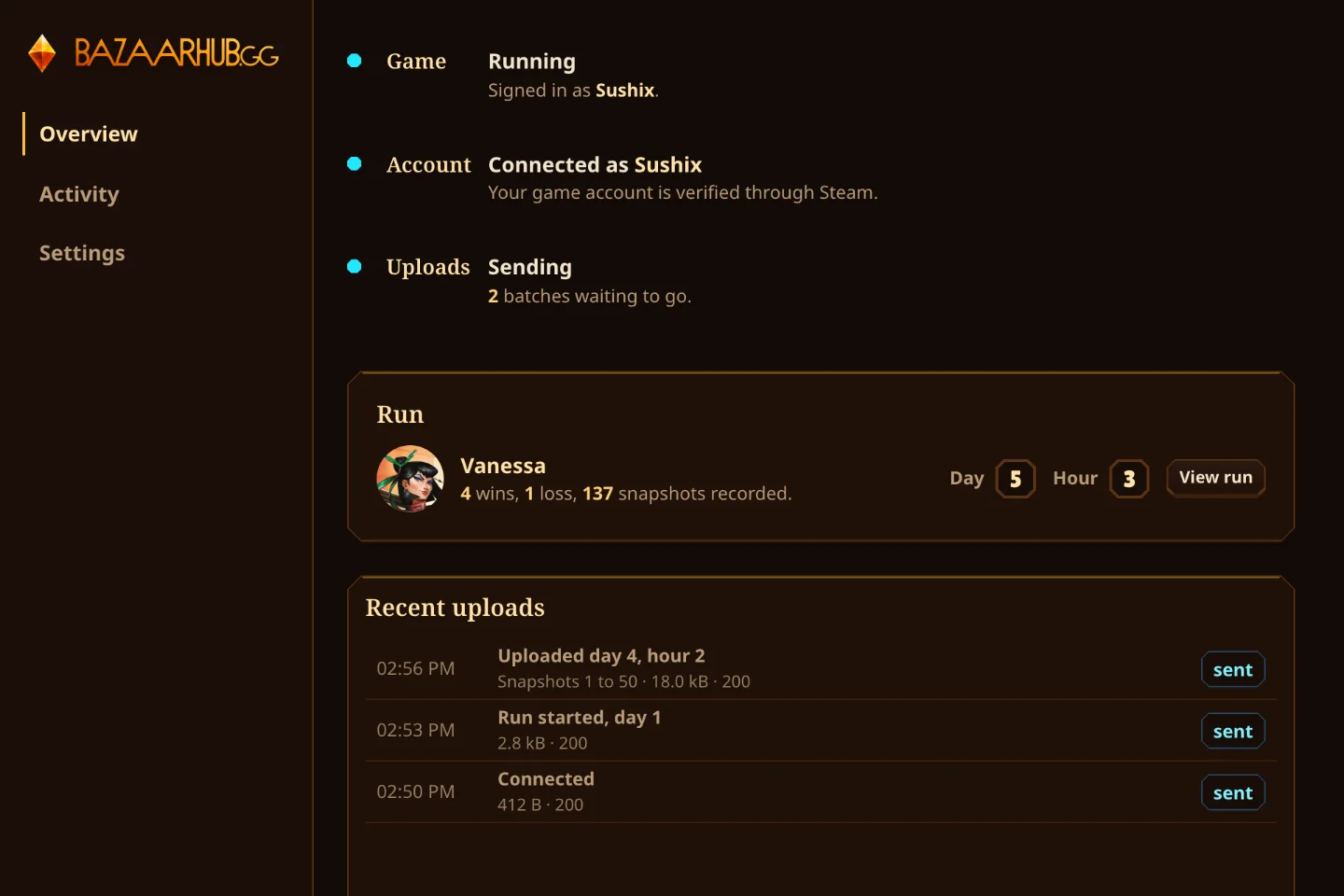
Connect your account
Make a key here and press Open in the tracker. It fills the key in and shows your account name to confirm.
Play a run
Go back to Game Mode and play. The tracker records with no window, and your runs appear on your profile. Keep Start with the system on in the tracker's Settings: on a Steam Deck, that's what keeps it recording in Game Mode.