
BazaarHub Tracker
Records your runs while you play and sends them to your profile.
What it reads
It reads the game's own log file and takes snapshots of the game's memory while a run is in progress.
It never changes the game, never talks to Tempo's servers and never simulates combat.
Everything it sends is shown in the app before it leaves your machine.
Installing
macOS
- Open the disk image and drag BazaarHub Tracker into Applications.
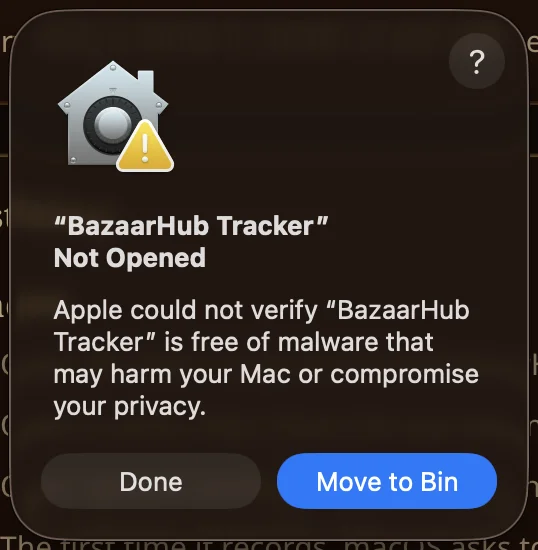
- Open it from Applications. macOS says it could not verify the app. Press Done, not Move to Bin.
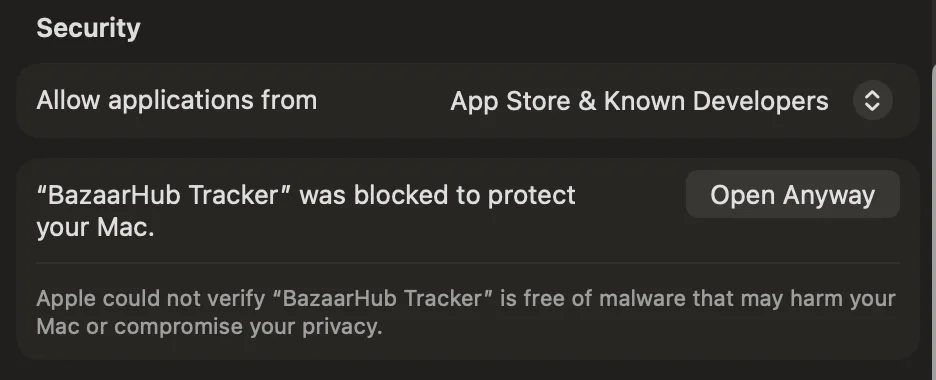
- Open System Settings, choose Privacy and Security in the sidebar, and scroll to the Security section near the bottom. Beside "BazaarHub Tracker was blocked to protect your Mac", press Open Anyway.
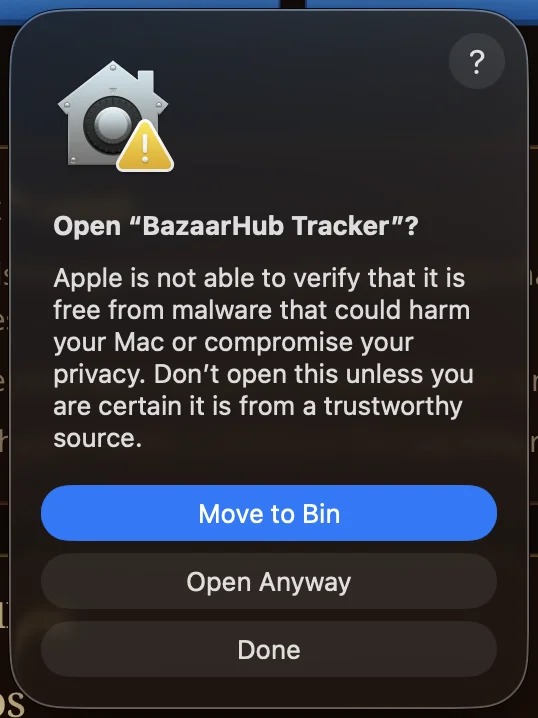
- macOS asks once more. Press Open Anyway, then use your password or Touch ID if it asks.
- The first time it records, macOS asks to let it read the game. Approve that prompt once.
macOS shows this once per install because the app is not notarised with Apple. Updates from inside the app do not ask again.
Installing
Windows
- Run the installer.
- On the SmartScreen warning, press More info, then Run anyway.
- Finish the installer and open BazaarHub Tracker.
Connecting
Make a key on your account page and press Open in the tracker. If the tracker does not open, paste the key into Settings, Connection.
Go to your account